5.3.13

Virtual City Playground


Build the city of your dreams... and then run it! 
Subscribe to the G5 newsletter and get a free game! www.g5e.com/e-mail 


- Build dwellings and industrial buildings.
- Produce goods and deliver them to the shopping malls.
- Set up a mass-transit system to take your citizens to places like parks, cinemas and stadiums.
- Make your city a better place to live by recycling garbage, adding hospitals and fire stations, planting trees, and upgrading buildings.
- Make citizens happier by launching spectacular public events!

Includes:

- Over 210 optional quests
- Over 140 buildings, landmarks, and decorations
- 95 achievements to earn
- Regular FREE updates to the game, so download and stay tuned!

***Minimized games continue transporting goods - making you money, even while you sleep!***

Get the Games Navigator – By G5 Games and keep up to date on all G5 games!

2.3.13

Toy Story


Toy Story


Disney has created some of my favorite games, includingPuffle Launch and Where’s My Water?
Their latest title has all the ingredients for another great game. Does Toy Story: Smash It! live up to its expectations?
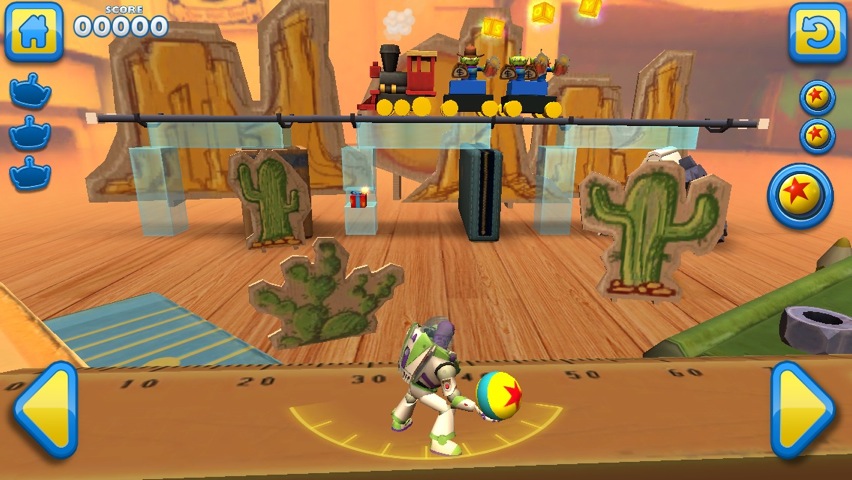
Toy Story: Smash It! by Disney screenshot
If you’re a Toy Story fan, you’ll love this app regardless of how good the gameplay is. You play as Buzz and encounter all of your other favorite characters during your mission. Thankfully, even if you’re not a fan of the Toy Story movies, this game is fun enough for anyone to enjoy.
It’s hard not to compare this game with the classic, Angry Birds. In this game, Buzz has to throw bouncy balls and various other objects at his alien friends to try and knock them over.
To successfully pass a level, you need to knock all of the aliens over with as few throws as possible. Before Buzz throws an object, you can move him left or right to make sure he’s in the ideal position. While most of that sounds pretty similar to the challenges faced in Angry Birds, this game offers a completely different experience.
The 3-D graphics in Toy Story: Smash It! are stunning. Everything looks smooth and objects in each level interact with each other just as you’d expect them to. While not completely original, the gameplay is addictive, without feeling too familiar.
Although this isn’t the most challenging game, some of the later levels are more interesting because they include moving objects, like trains. To get through such levels, you need to carefully plan how you’re going to knock the aliens over without the moving objects getting in the way.
Toy Story: Smash It! by Disney screenshot
It looks like Disney has done it again with Toy Story: Smash It! This is now one of my favorite apps. It looks great, the levels are well thought through, and the gameplay is addictive. It’s perfect for casual gaming and is an app I’m sure kids will love.
For anyone looking for their next casual game, this is definitely worth checking out. Those of you who are after something more challenging might find this game too easy. If you do think it’s too easy, you could challenge yourself by trying to get all three stars in each level.
You can get Toy Story: Smash It! for both the iPhone and iPad for $0.99

Files App


Files App


Files App ($0.99) by Sonico GmbH is a simple little app to help you organize and keep your important files on your iPhone or iPad. Files can be quite critical, right? So if an app can help you keep all of these organized right from your mobile phone, then it’s definitely worth something.
We took a quick look at Files yesterday, but I decided to fully dive in to the app and give it a test drive. And it definitely does not disappoint.
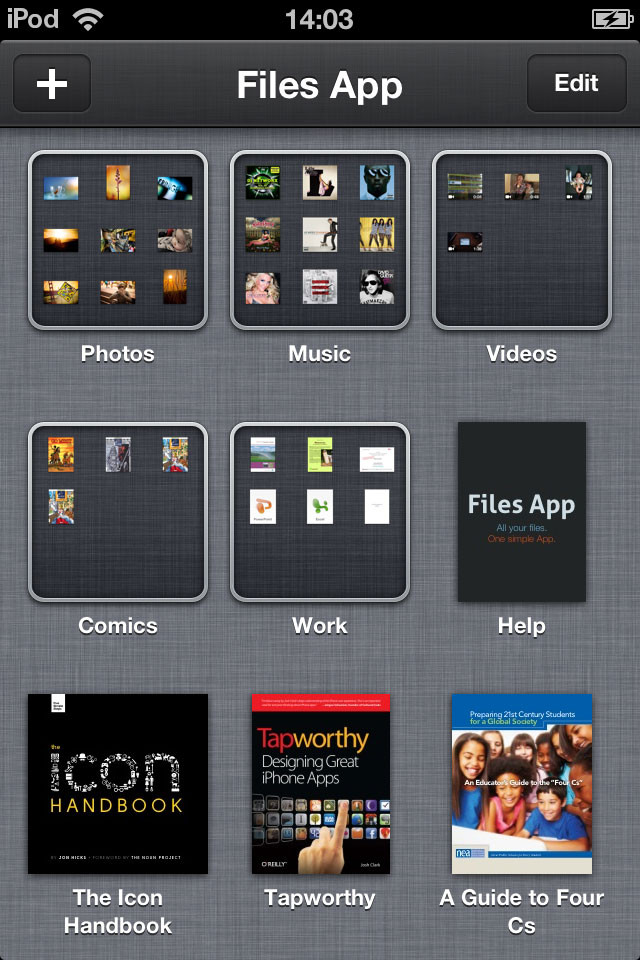
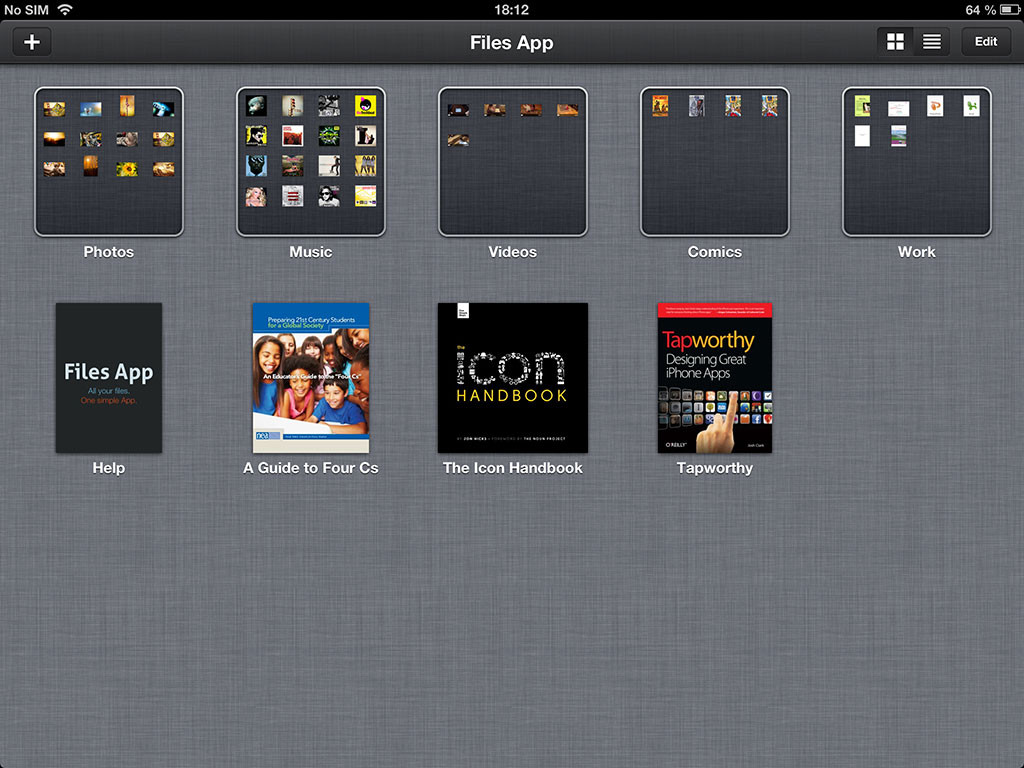
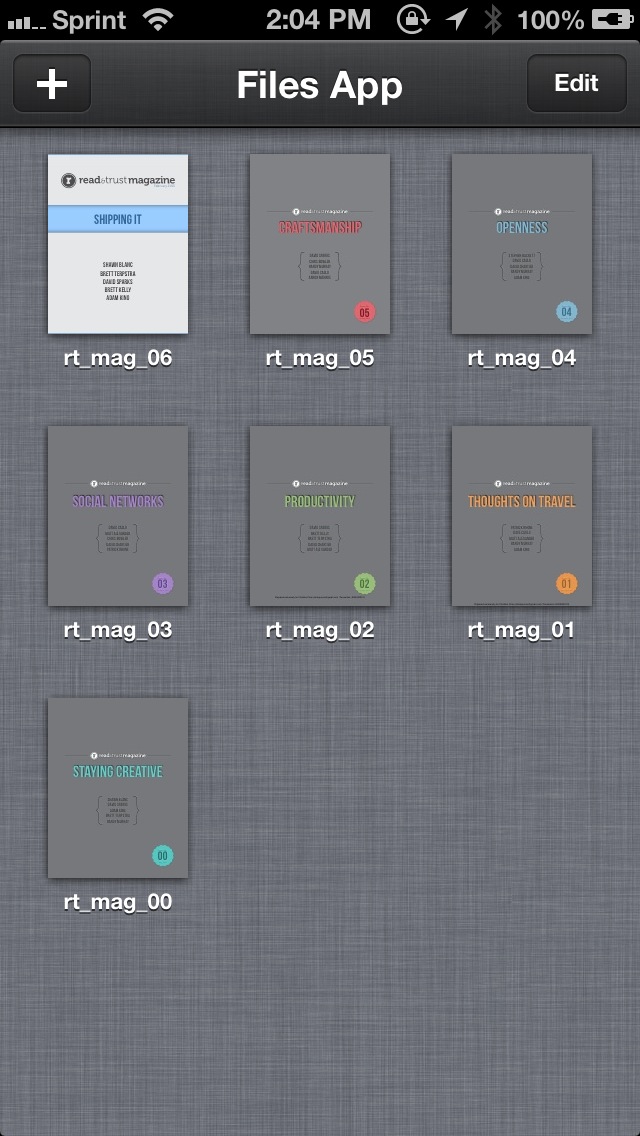
Files App by Sonico GmbH screenshot
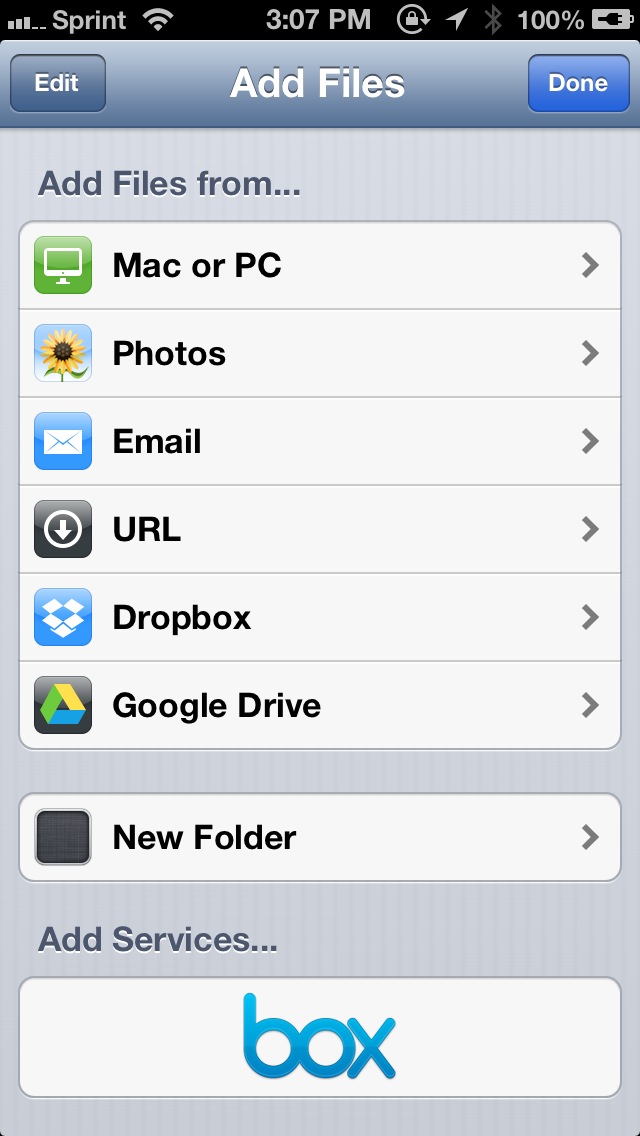
When you first launch Files, it will ask you to connect some sources for file repositories. There are several methods of doing this. You can add files from your computer (Mac and PC) by connecting over Wi-Fi or USB. Files can even add images from your device’s Photo Library, email (using the native iOS “Open In …” menu), and valid URL.
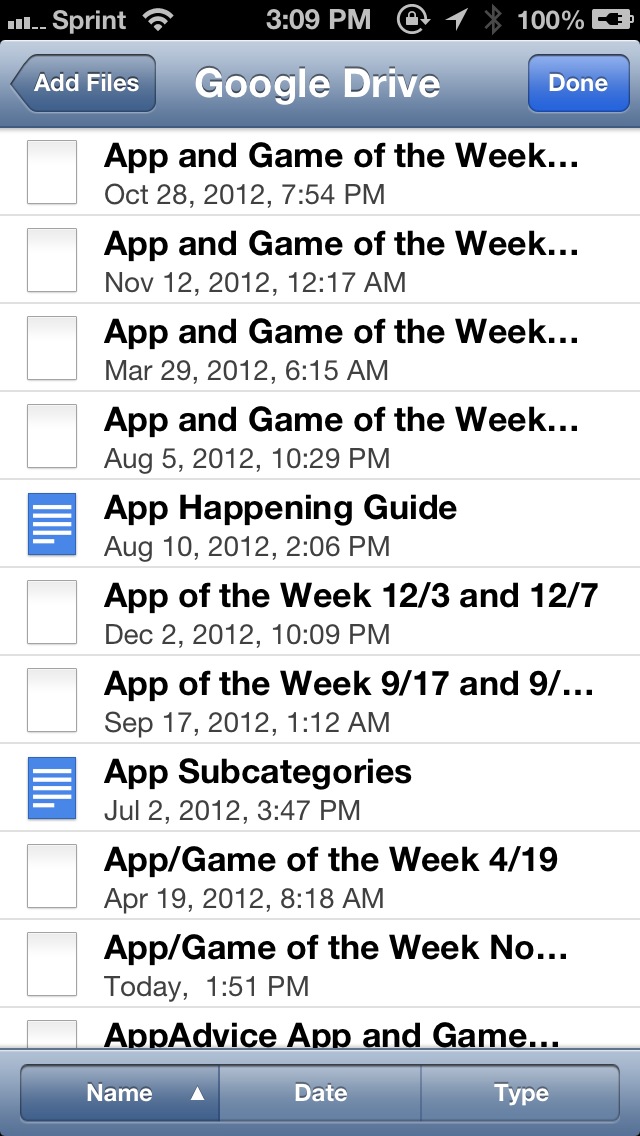
Additionally, you can add third-party services like Dropbox, Box.net, and Google Drive. When these sources are added, it will pull up a list of all of your available files in the service. Tapping on items will have Files begin downloading them for offline access.
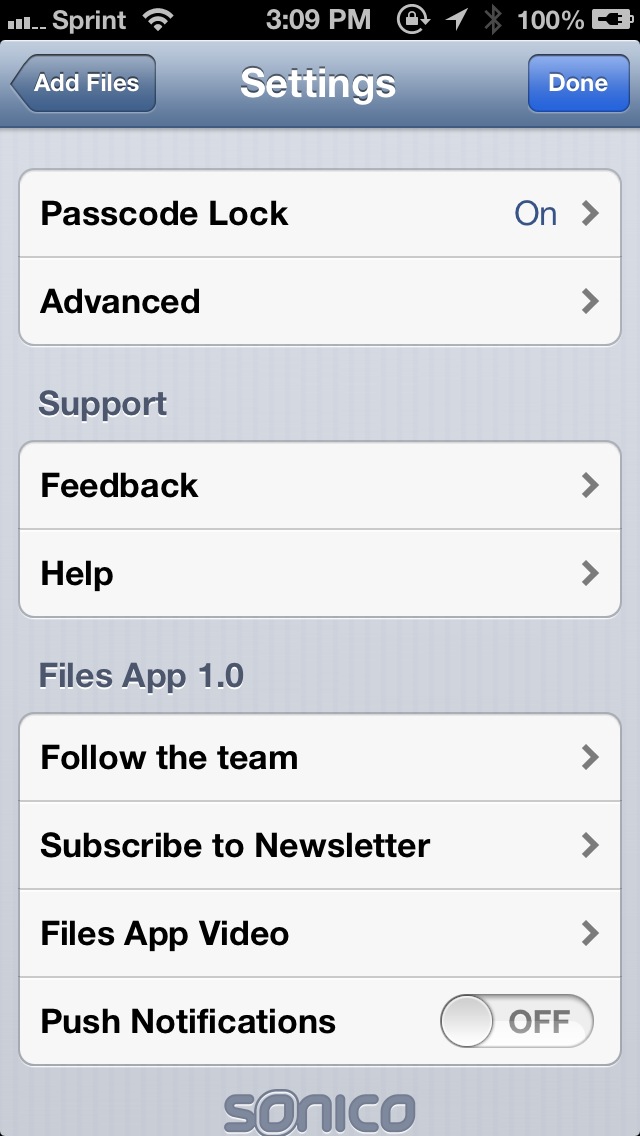
For those worried about others having access to your important files and data, you can toggle a passcode lock in the app’s settings. The passcode lock can also be activated immediately (when you switch apps), and you can even have the app wipe out all of your data after 10 failed passcode attempts. Other advanced options in the app are toggles for thumbnail previews and file extensions.
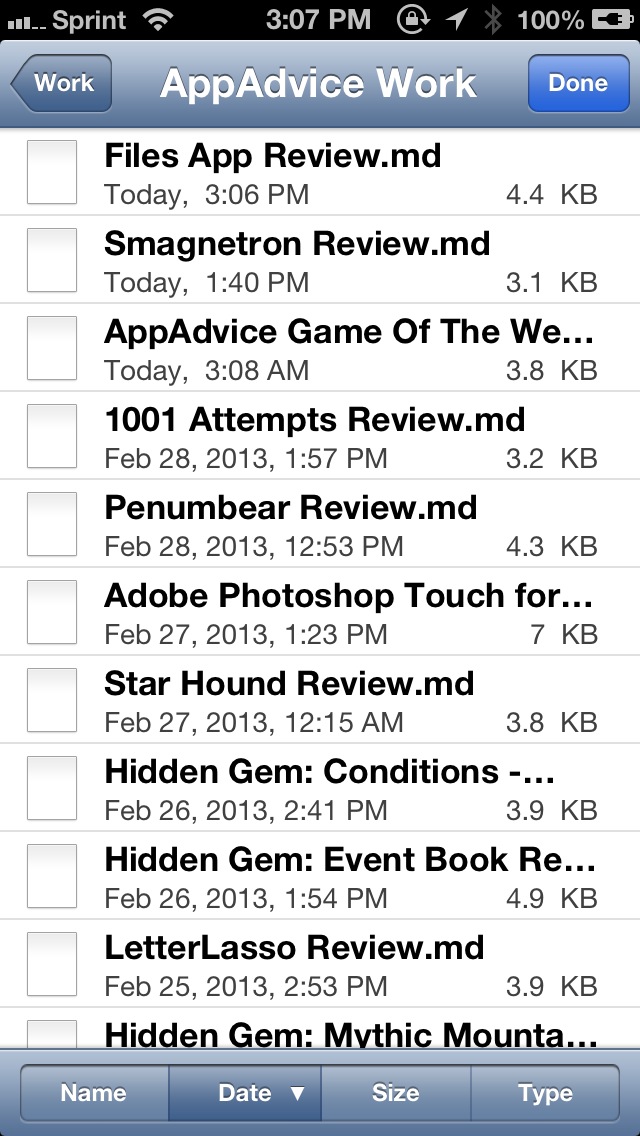
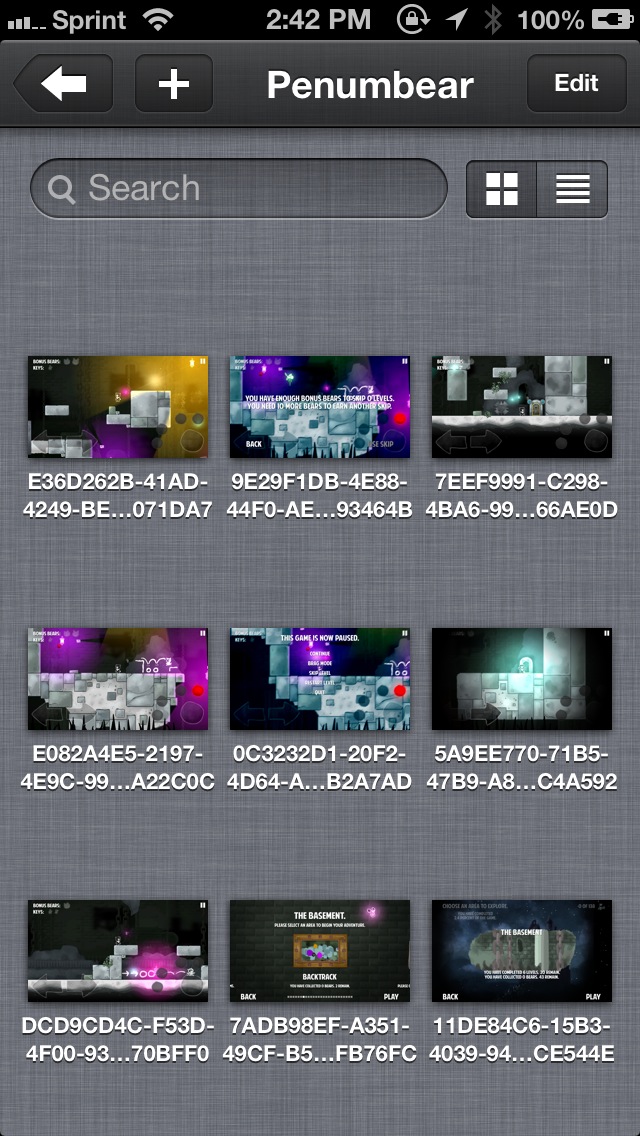
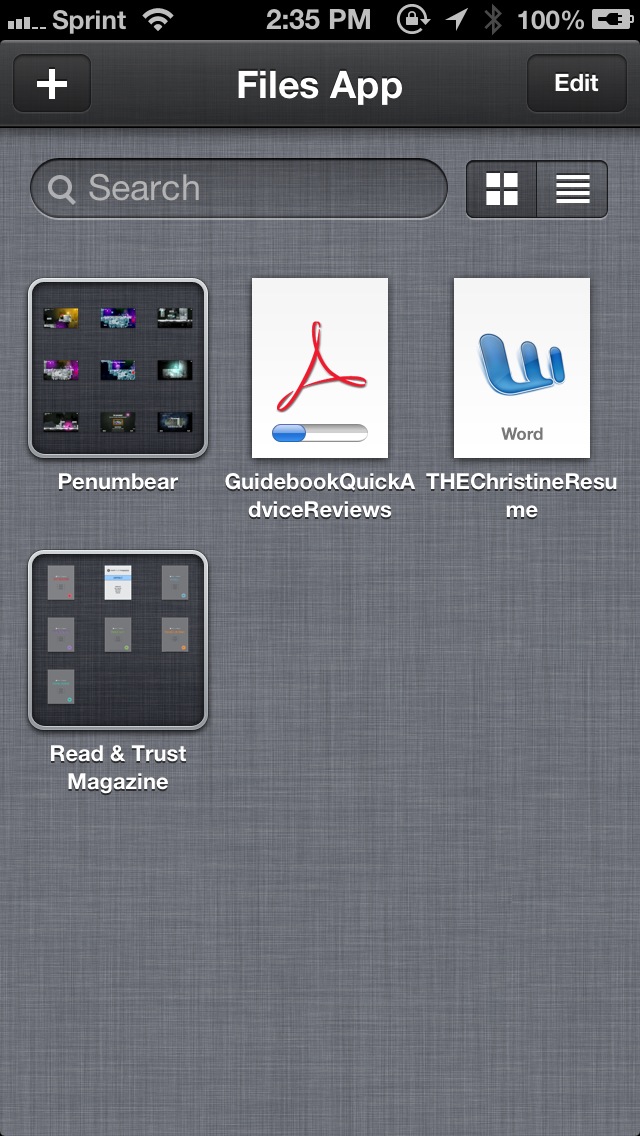
Once you start importing your files, you’ll be able to access them at any time, with or without a data connection. That’s the beauty of the app — it’s pretty much like a Finder for your iOS device! Now, what if you have a lot of files? It starts to look a bit cluttered, doesn’t it? Organizing your files is as easy as rearranging your home screen in Files. Just tap-and-drag a file over another one, and it will create a folder. Rename it to whatever you want, and repeat the process to add other files into the folder.
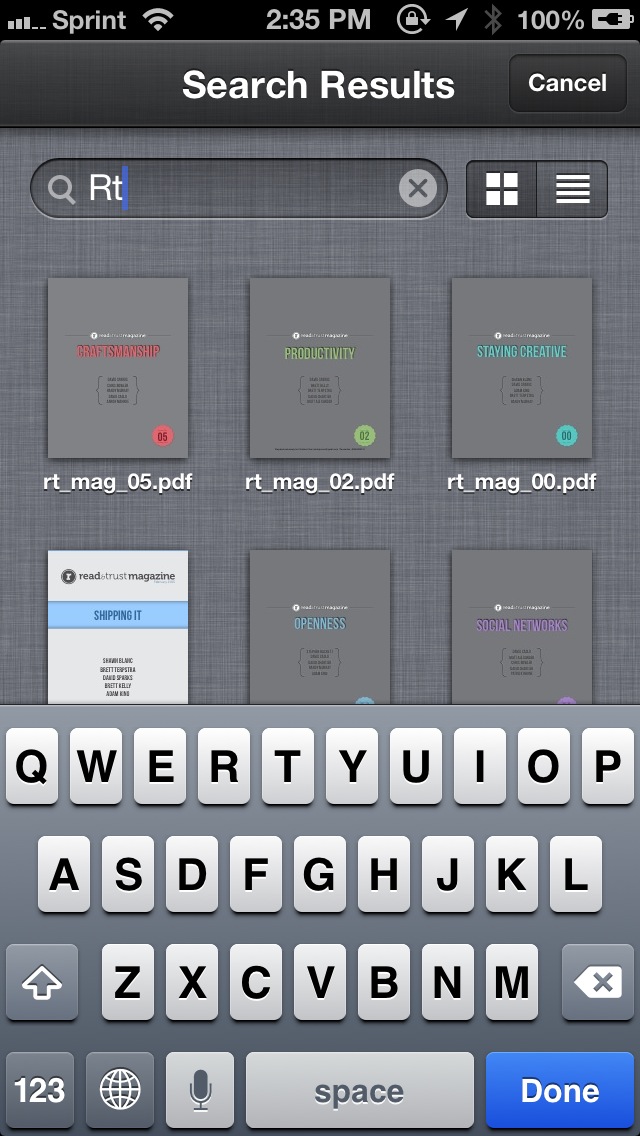
If you’re looking for something specific, you can find a search bar at the top of the screen, as well as a toggle for grid or list file view. Searching will happen in real-time as you type, but it can only search through file names at the moment.
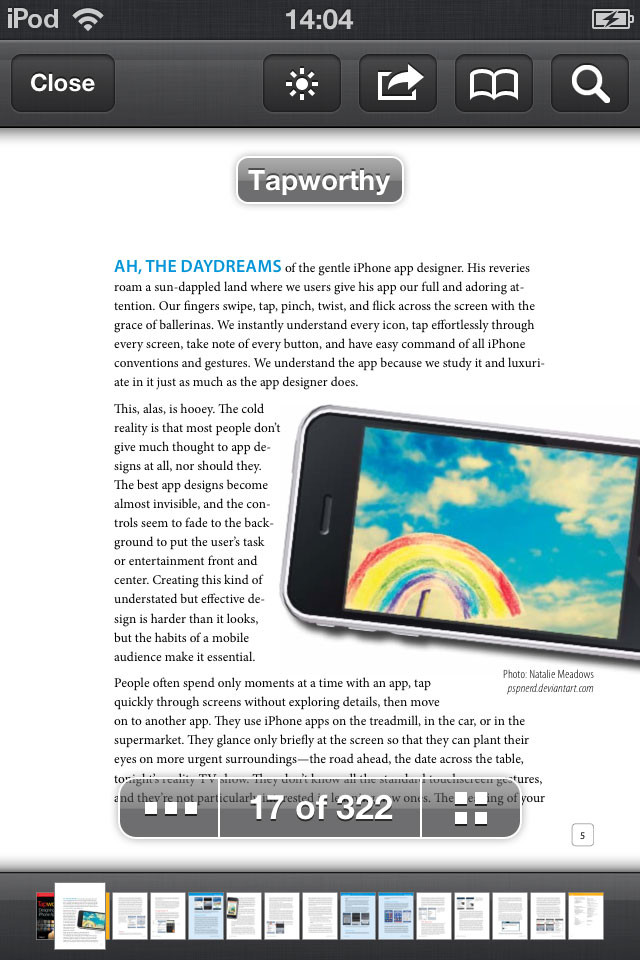
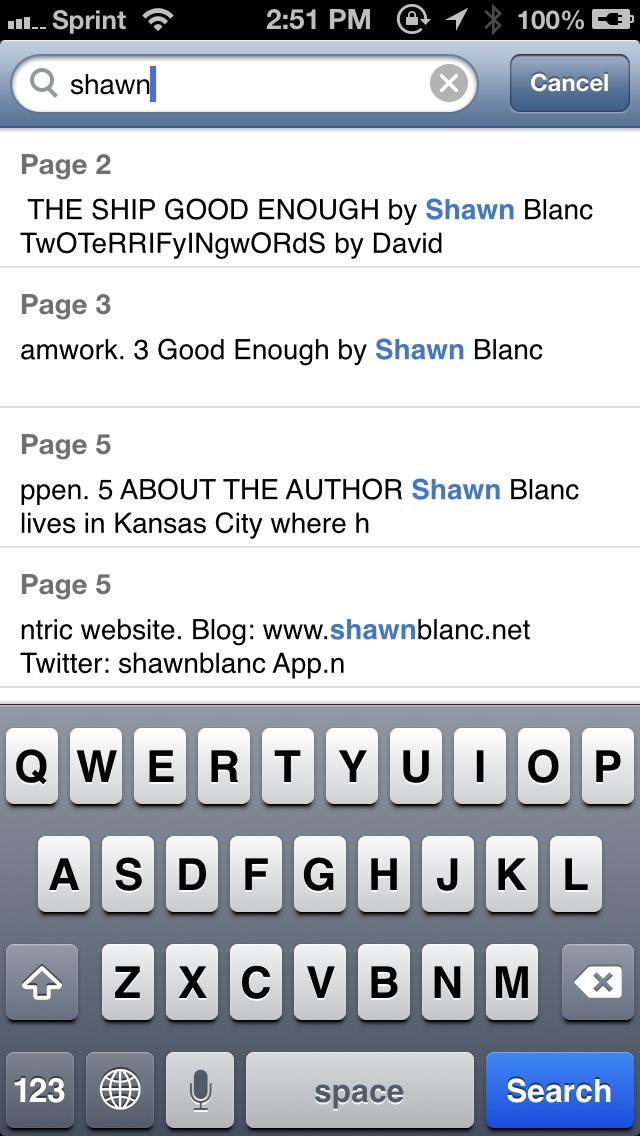
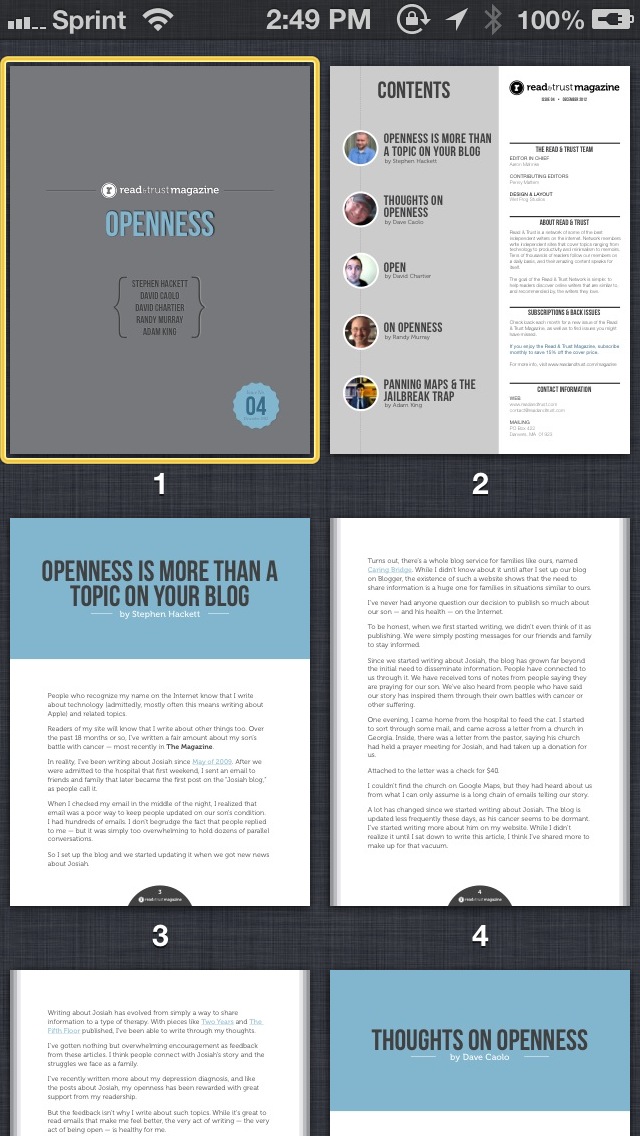
When you need to view a file, just tap on it. You will be able to view it in full-screen, and you can scroll through multiple files or document pages by swiping left and right. A bar at the bottom allows you to quickly jump to a certain file or page as well, which is very nice. The bar can also be expanded into a full on grid or horizontal timeline for easier previews. You can also adjust brightness, share, print, or open the file in another app, view outlines (PDFs), change background color (photos), play videos and music directly, and more. For documents and PDFs, you can even search for text within pages, which is incredibly handy.
Files App by Sonico GmbH screenshot
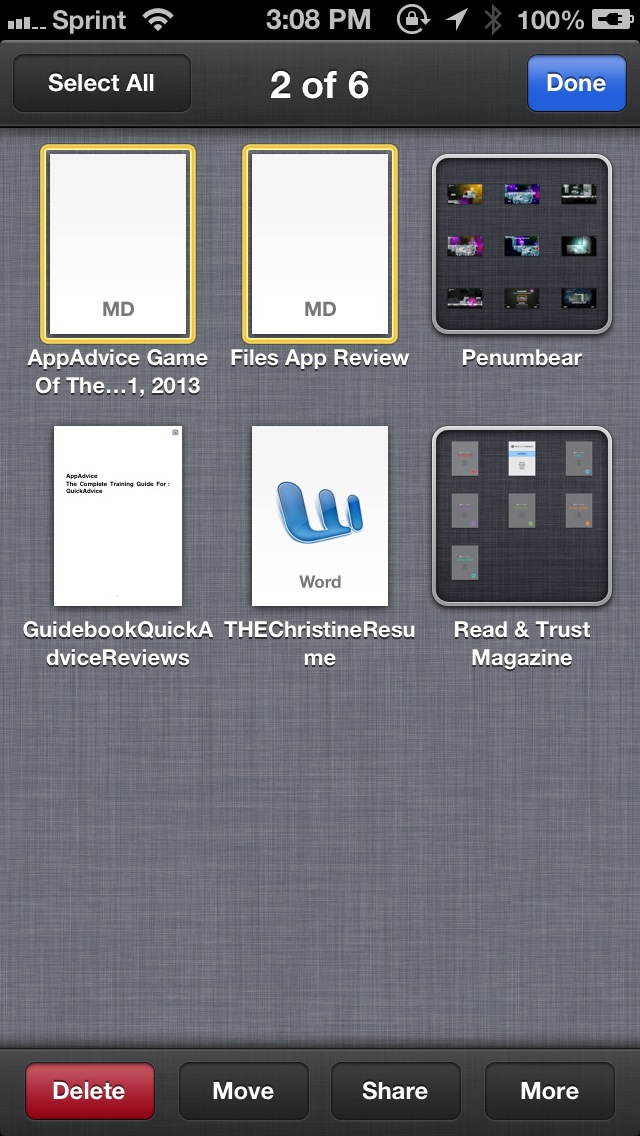
Files also features a batch editing option, where you can delete, move, share, duplicate, or zip up multiple files at once. Unfortunately, like other file viewers, you cannot edit any data in the app — this will have to be done in an appropriate third-party app. Files is just for viewing only.
I’m really liking Files so far, because it brings in the intuitive gestures of iOS into a file managing app, so it’s never been easier to organize and keep your files with you wherever you go. However, I would like to see the option to have multiple Dropbox, Box.net, or Google Drive accounts. Currently, you are only able to add one of these at a time, so if you have multiple accounts, you will have to pick only one to use in Files.
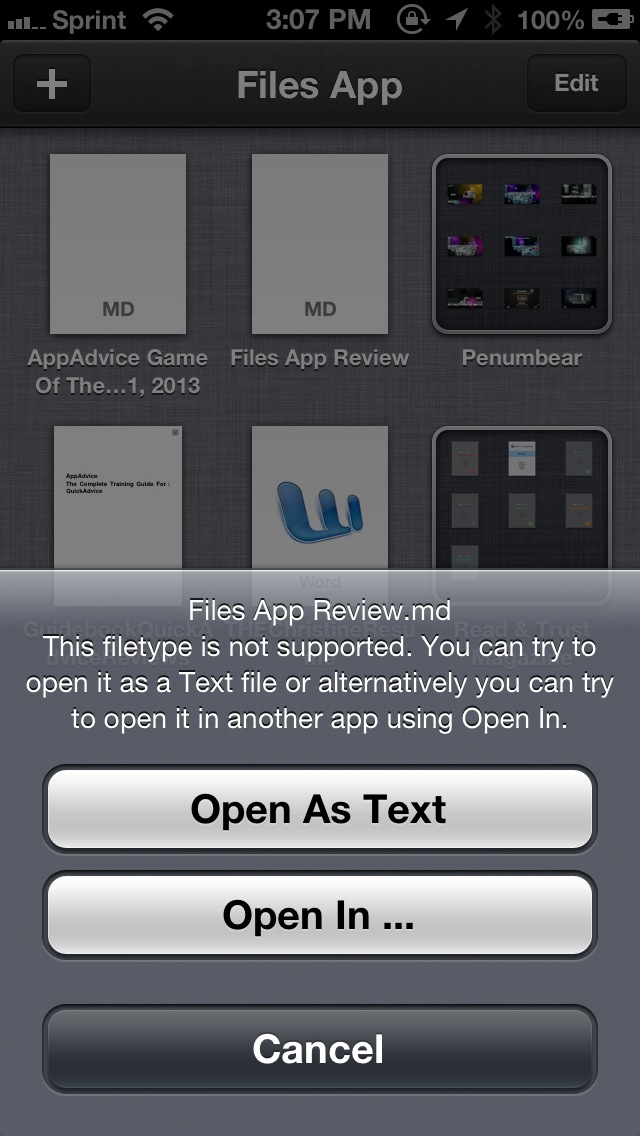
Also, while there are many ways to import files for local storage in the app, it is missing WebDAV and STFP, so hopefully more storage points are added in the future. The app also does not seem to be able to open RAW images, for some reason — hopefully support for this is added in an update. I also am not able to view my Markdown documents in the app at the moment — I have to open it as plain text or select a third-party app to view. I hope to see support for .md files down the line as well.
While it’s not perfect, Files is still a very polished file storage and viewer app for iOS. The interface is clean and simple, and really feels like it’s a native part of iOS itself.
If you need offline access to important files from your iPhone or iPad, then I recommend giving Files App a spin. You can get it in the App Store as a universal download for only $0.99.